MigosAI guide
How to Make a Hotel Lobby AI Video for Free
You can make a Hotel Lobby AI video by uploading two clear photos, placing one character on the left and one on the right, and generating an 30-second clip with MigosAI.
- Cost
- Free for your first video — a new account gets 1 credit
- You need
- Two clear photos, one per person
- Time
- Usually a few minutes, up to about 20 minutes
- Result
- 16:9 MP4: 8s at 480p free, 10-30s at 720p with any credit pack
Step 01
Prepare two clear photos
Pick one photo per person. The model takes each face directly from what you upload, so the photo matters more than anything else you do.
- Face the camera, with the whole face visible and not too small in the frame.
- Even lighting and a simple background. Avoid heavy filters.
- One person per photo — crop group shots down to one face.
- JPG, PNG or WebP, under 8 MB and at least 300 px wide. The upload says so if not.
Step 02
Upload the photos
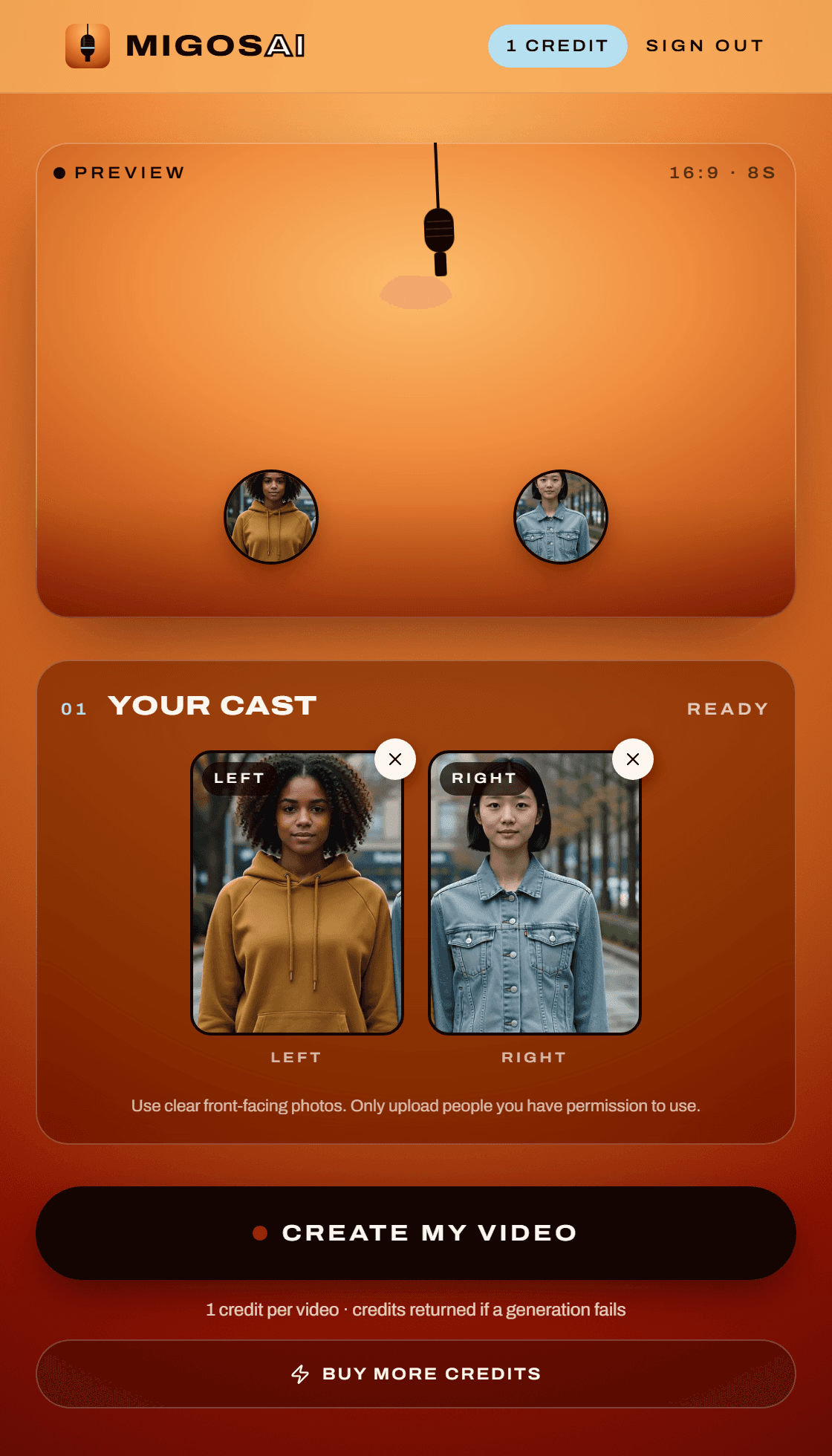
On the generator, scroll to Your cast and tap Add photo in the Left slot, then in the Right slot. The left photo performs on the left of the finished video, the right one on the right. To change a photo, tap the × on it and pick another.
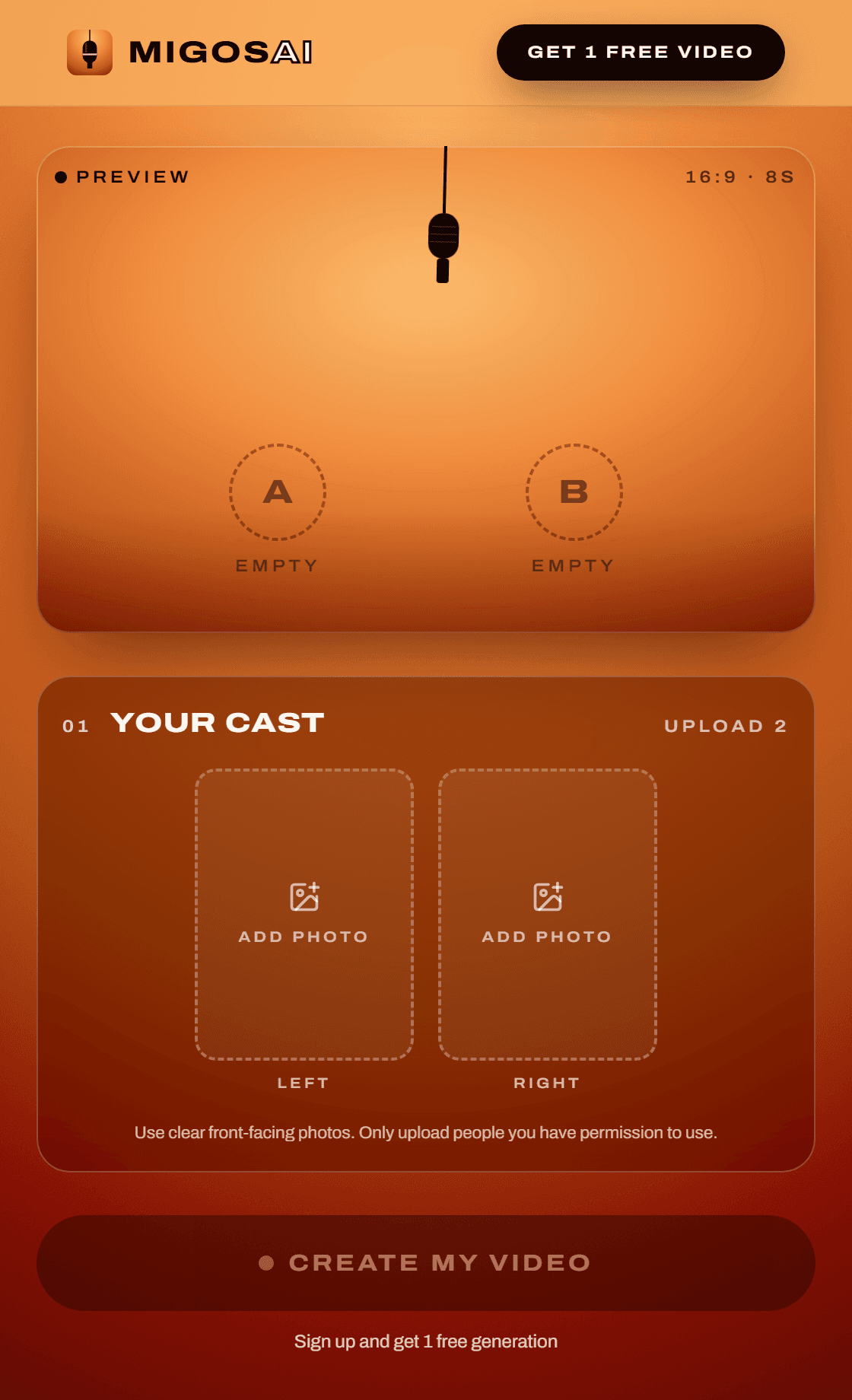
Uploading needs an account, so the first time you pick a photo a sign-in window opens. Tap Sign up at the bottom and create an account with your email and a password, then pick your two photos again. A new account comes with 1 free credit, and one credit makes one video.
Step 03
Generate the video
Press Create My Video. One credit is used and the screen switches to a progress view.
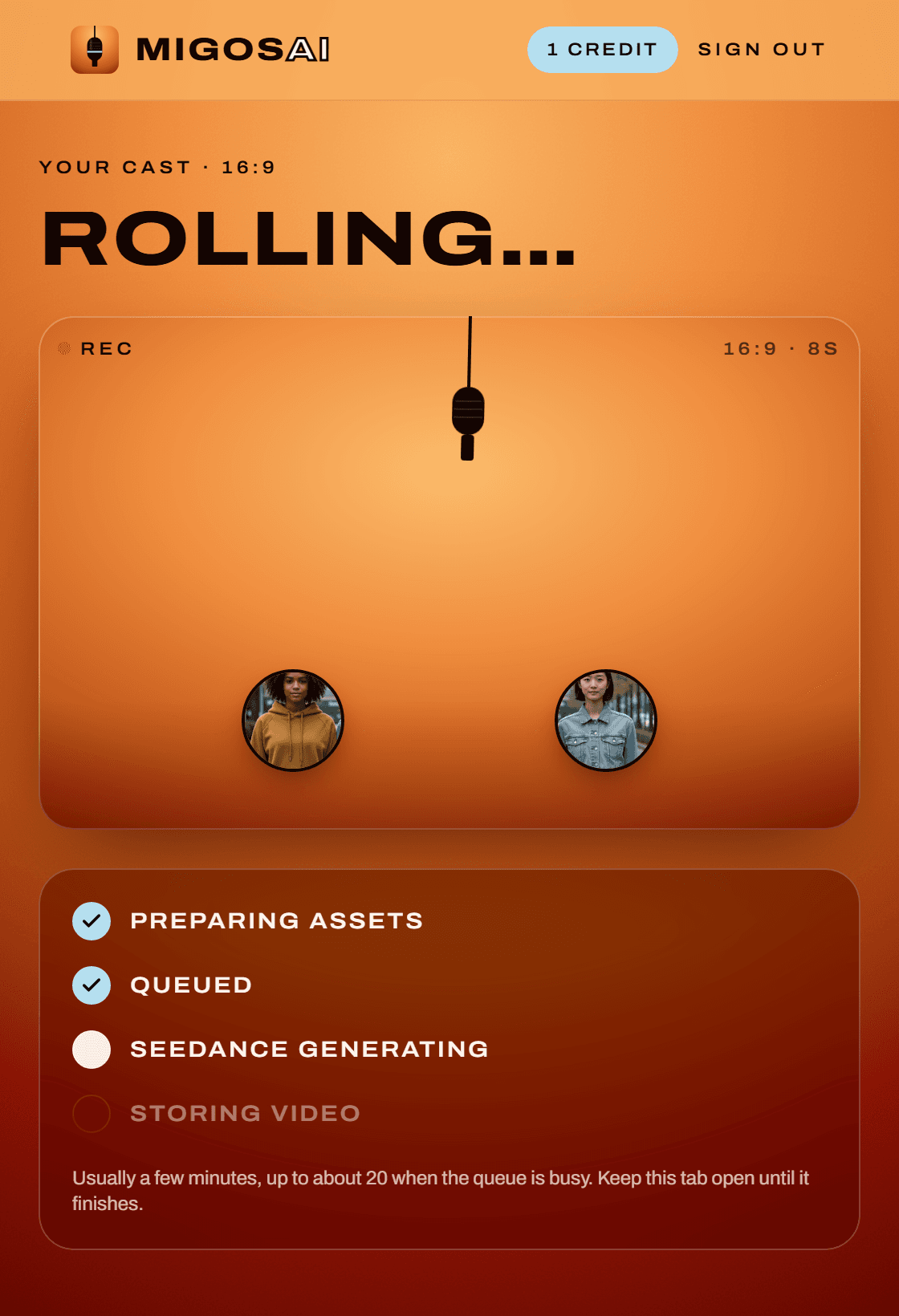
How long it takes: usually a few minutes, and up to about 20 when the queue is busy. The progress list is a guide, not a timer — a render can sit on one step for a while and still finish fine. If nothing has come back after 30 minutes the page stops waiting and says it is taking longer than usual.
Keep the tab open until it finishes. The site doesn't have a page of past videos yet, so if you close the tab you can't get back to this result from the site. You can only run one video at a time, so a second one has to wait until this one finishes.
If the generation fails
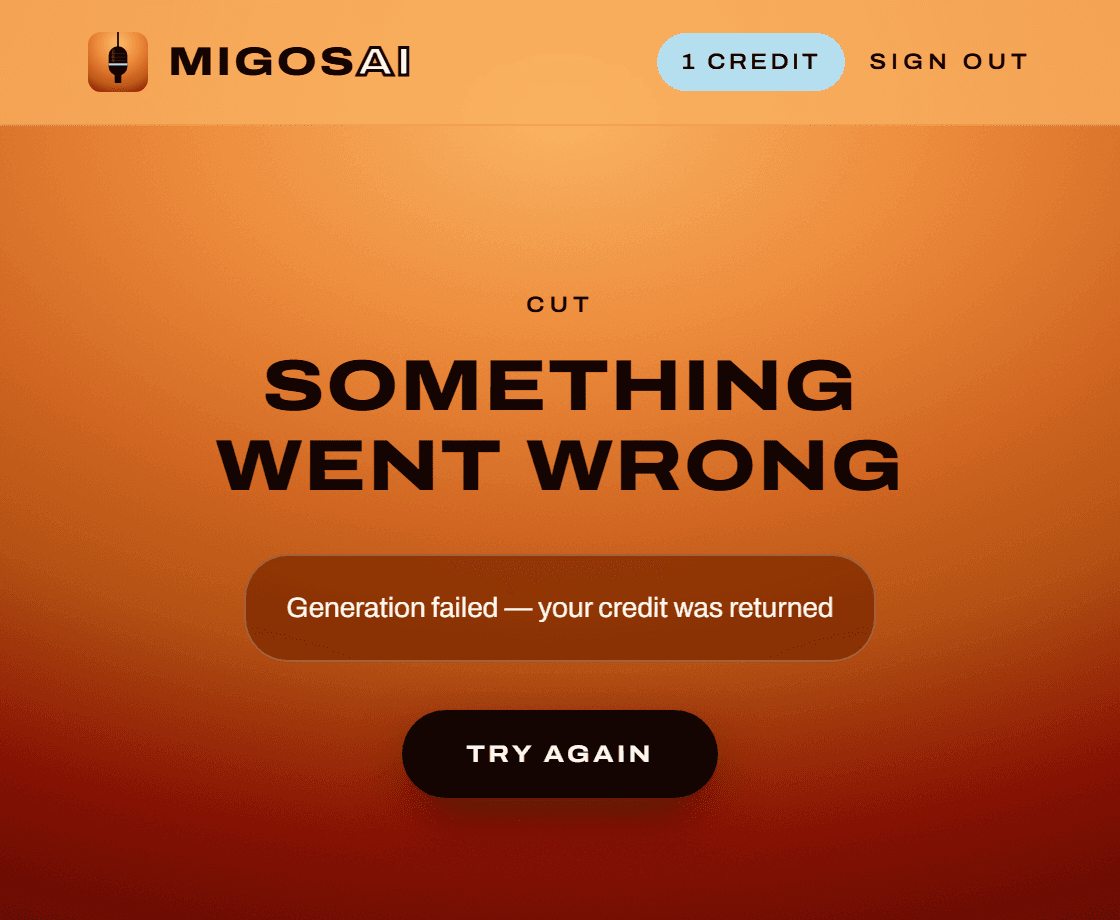
A failed generation costs nothing: the credit goes back to your balance automatically, and the badge in the top right shows it. Press Try again to go back to your cast. The usual causes, and what to do:
- The photo didn't work. A face that is turned away, tiny, filtered or covered is hard to keep. Swap in a clearer photo.
- Content rules. The video model runs its own moderation, and material it declines can't be generated with any settings. The error message shows its reason when it gives one.
- “You already have a video in progress”. The previous video is still rendering. Wait for it to finish, then start the next one.
- Daily limit. Free accounts can start up to 1 video in 24 hours, failed ones included. Buying credits removes the limit.
Step 04
Preview and download the result
When the render finishes, the video plays right on the page. Underneath it:
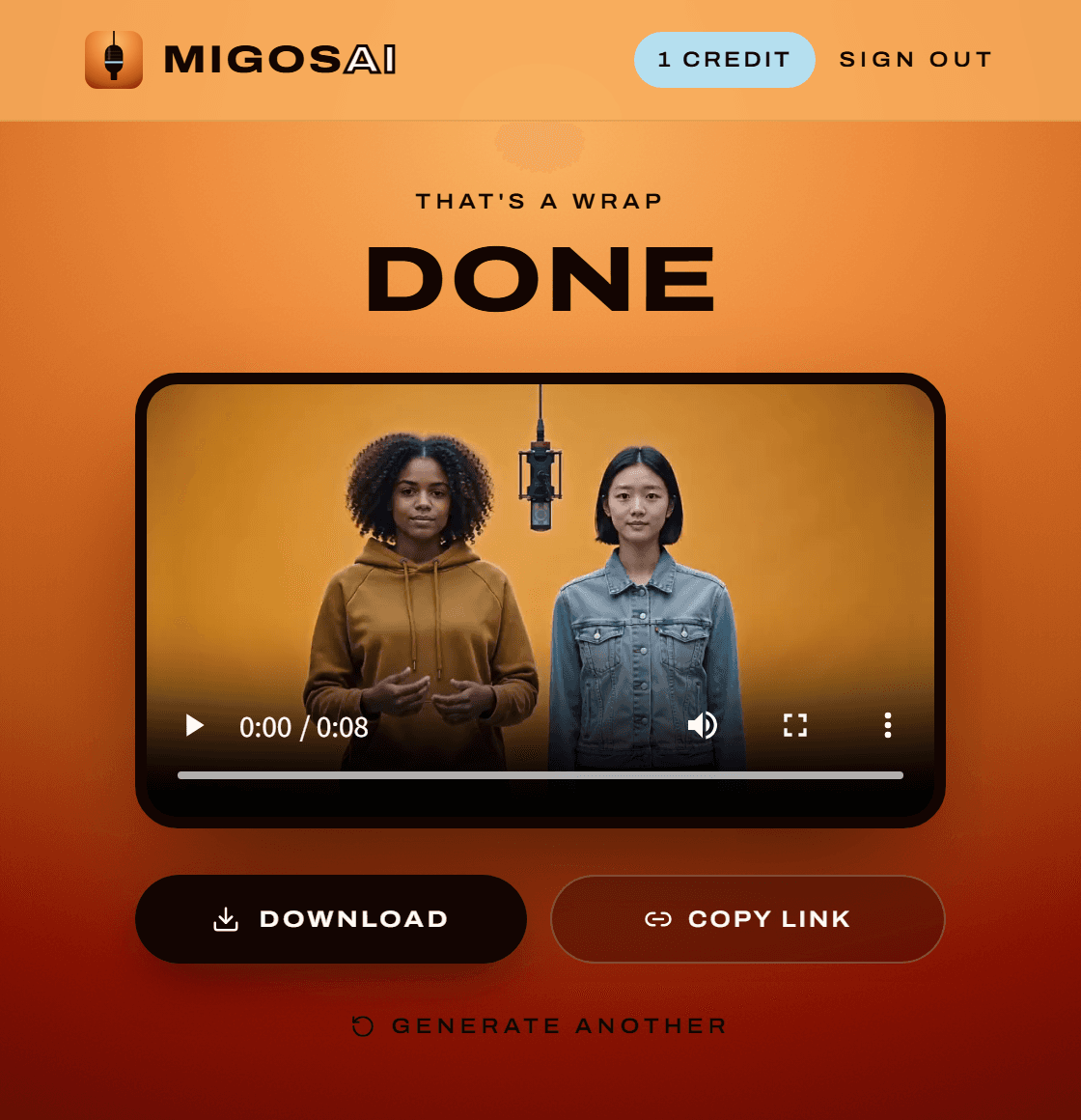
- Download saves the 30-second MP4, with sound, to your device.
- Copy link copies a direct link to the video for sharing. The link doesn't expire.
- Generate another takes you back to the upload screen, if you have credits left.
Can I find my past videos later?
Not on the site yet: there is no history page, and once you leave the result screen it won't show that video again. Before you leave, press Download, or press Copy link and save the link somewhere. The link doesn't expire, so you can open it again any time.
MigosAI is an independent, fan-made AI video tool built with Seedance. It is not affiliated with, endorsed by, or sponsored by Migos, Quality Control Music, or any related artist, label or rights holder. Only upload images and media you have permission to use.